Finding a low cost screen time settings tutorial for single parents saved my sanity when my kids started spending six hours a day staring at tablets. Managing screen limits alone while cooking dinner and handling bedtime routines felt completely impossible. You do not need expensive subscriptions or specialized monitoring software to take back control. Built-in tools on your existing phones and tablets handle everything for free.
Low Cost Screen Time Settings Tutorial for Single Parents: Master Apple iOS
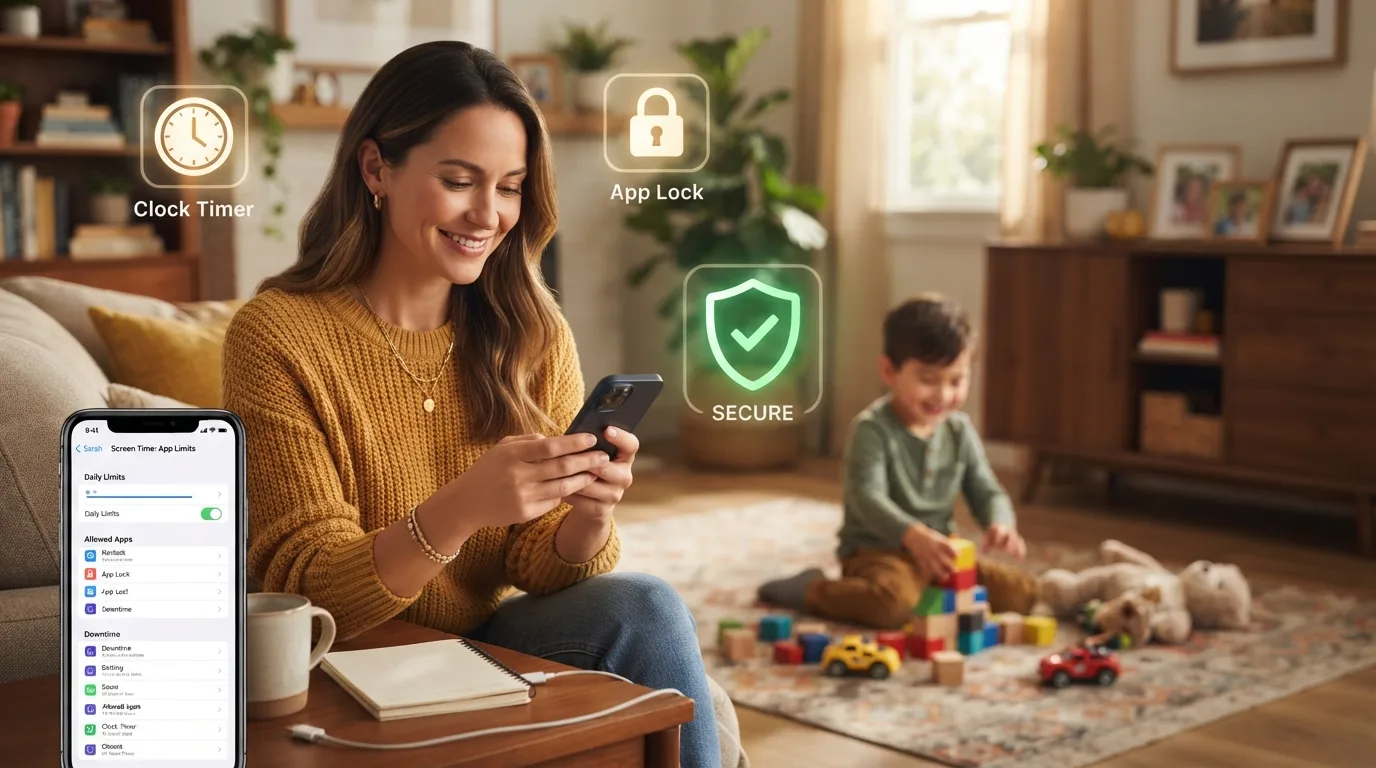
Setting up Apple Family Sharing takes less than five minutes and gives you total remote management over your child’s iPad or iPhone. Open the settings menu on your phone, select your account profile, and tap the family sharing option to create a child account. Once linked, you can configure downtime, app limits, and privacy blocks directly from your own device screen.
Assigning a dedicated Screen Time passcode prevents clever kids from overriding the limits you set. Make sure this four-digit pin is completely different from your normal device unlock code. My middle child guessed my standard unlock pin within two days, so choosing an unpredictable digit combination keeps your settings locked down tight.
Configure Google Family Link for Free Android Controls
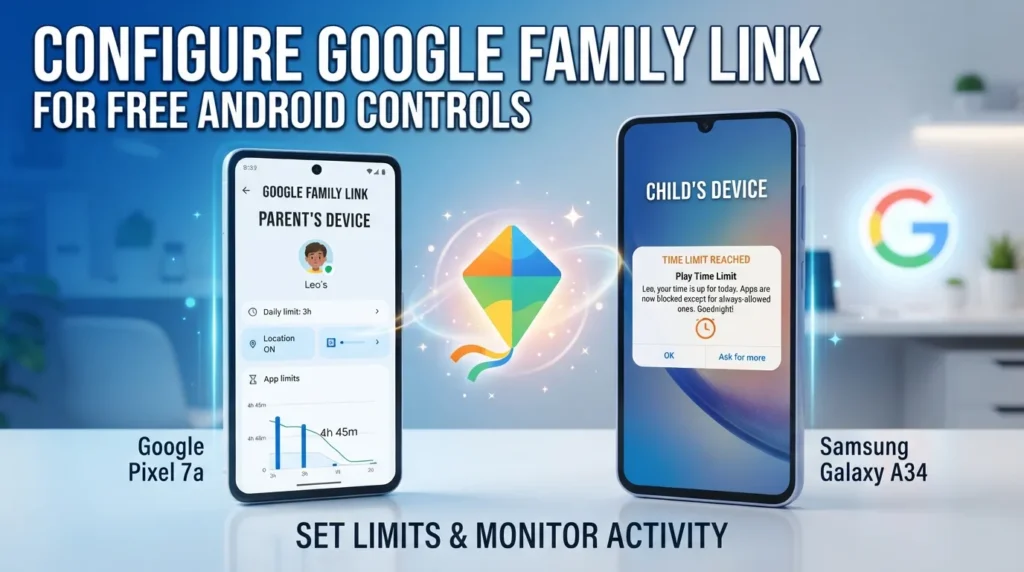
Google Family Link provides incredible free management tools if your household relies on Android devices, Chromebooks, or Kindle Fire tablets. Download the parent app onto your smartphone and follow the prompts to pair your child’s hardware using their Google account credentials. The application grants immediate oversight of daily usage limits, app permissions, and physical device location tracking.
Setting daily time budgets prevents your kids from burning through four hours of video games before lunch. You can set individual daily usage caps like two hours on school days and three hours on weekends. A common mistake single parents make is forgetting to restrict web browser settings, allowing children to access unblocked web versions of restricted apps.
Lock Down In-App Purchases and App Store Downloads
Surprise credit card charges from accidental game upgrades can ruin a carefully managed monthly household budget. Following a low cost screen time settings tutorial for single parents helps you secure spending controls without buying third-party tracking apps. Navigating to the purchase approval tab allows you to enforce strict authorization rules for every app transaction.
Turn on the Ask to Buy feature inside your software settings so your phone receives an instant alert whenever your child tries downloading an app. Require biometric authorization or password confirmation for every single financial transaction, including free app downloads. I learned this lesson the hard way after my youngest accidentally spent thirty dollars on virtual game coins during a busy weeknight.
Automate Nightly Downtime to Prevent Bedtime Phone Battles
Tired single parents should never spend their late evenings arguing with teenagers about handing over their mobile devices. Scheduling automatic downtime turns off non-essential apps at a specific hour every single night without requiring you to play the bad cop. Darkened app icons become completely unclickable once the scheduled bedtime hour arrives.
Set your evening downtime schedule to trigger at least one hour before lights out so your child’s brain can relax from blue light exposure. Keep basic communication features like standard phone calls or text messaging active in case your child needs to reach you while staying at a relative’s house. Double-check your allowed apps list so streaming media apps do not accidentally bypass bedtime locks.
Use Built-In Wi-Fi Router Schedules for Household Devices
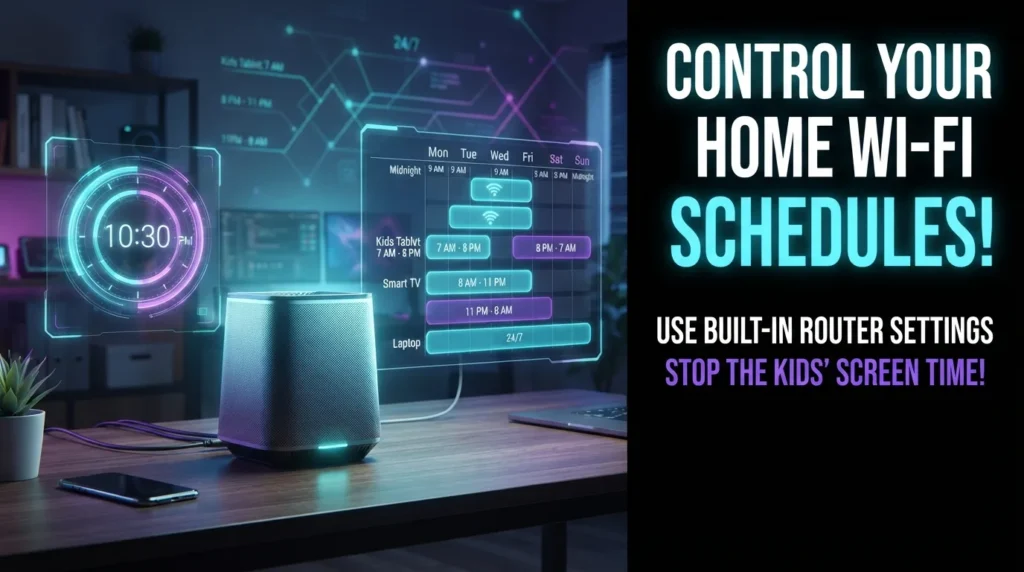
Hardware controls right on your internet router act as an absolute backup when individual device settings get bypassed. Most internet service providers offer free router management apps that let you categorize smart TVs, gaming consoles, and tablets into simple user profiles. Applying this low cost screen time settings tutorial for single parents means using hardware options you already own.
Creating a scheduled Wi-Fi pause routine automatically cuts off internet connectivity for specific devices at designated homework or bedtime hours. Disconnecting household Wi-Fi at 9 PM shuts down smart TVs and gaming systems across the entire home simultaneously. This simple router trick saves you from walking around the house turning off individual screens when you are exhausted.
Restrict Web Content and Social Media Exposure
Filtering mature web content protects curious kids from stumbling into inappropriate websites while searching for homework help online. Both Apple and Android ecosystems include robust built-in content filters that block explicit web domains and search results automatically. Selecting adult site restrictions takes away the worry of unmonitored browser sessions.
Toggle on explicit media filters to block adult music, podcasts, and video streams across installed media platforms. Set web browsing access to restricted web access mode, which limits young children strictly to a pre-approved list of safe educational domains. This layer of digital protection keeps your children safe without requiring you to sit right next to them every second.
Establish a Shared Physical Phone Station and Clear Rules
Physical habits combined with software limits create an environment where screen boundaries run on autopilot. Setting up a dedicated charging dock in a central area like the kitchen counter ensures devices leave bedrooms long before sleep time. IMO, physical boundaries work far better than software locks when older kids start looking for passcode workarounds.
Place a simple multi-port charging strip on a high kitchen shelf and make 8 PM the mandatory drop-off time for all household screens. Keeping hardware out of dark bedrooms prevents late-night scrolling, hidden video watching, and interrupted sleep cycles completely. Enforcing this physical habit along with your software settings ensures your family stays consistent every night.
Frequently Asked Questions
Is a low cost screen time settings tutorial for single parents effective without paid apps?
Yes, built-in features like Apple Screen Time and Google Family Link offer enterprise-grade parental controls completely free. Paid monitoring software often charges steep monthly fees for features your phone already includes. Using free native settings gives single parents full control over app limits, content filtering, and downtime schedules without adding extra subscription costs to your budget.
How do I prevent my child from bypassing the screen time passcode?
Children often watch parents type passcodes or use screen recording features to steal codes. Make sure your Screen Time passcode differs completely from your phone unlock PIN. Additionally, disable screen recording permissions in your content restriction menu so kids cannot secretly capture your digits while you enter your administrative approval code.
What should I do if my kid needs their phone for school assignments past bedtime?
You can grant temporary app access directly from your parent phone without disabling your master Downtime schedule. Simply approve a fifteen-minute or one-hour extension for educational apps like Google Classroom or Khan Academy. This flexibility lets your child finish homework while keeping distracting social media apps and games locked down tight.
Can I manage screen time settings if my child has an iPad and I have an Android phone?
Yes, you can manage an iPad from an Android phone using web-based account portals or cross-platform apps like Google Family Link for Google services. If your child uses Apple hardware exclusively, set up parental control passcodes directly on their iPad so settings remain locked regardless of what smartphone operating system you personally use.
Conclusion
Taking control of your household tech does not require expensive subscription tools or constant tech battles. Configuring built-in phone controls and setting clear physical boundaries gives you back your quiet evenings. Which free screen setting are you going to turn on for your kids tonight?