Nothing ruins a great outing faster than watching your phone battery hit five percent while you are still navigating back to your car. I learned that lesson the hard way after getting stuck in a new city with a dead phone and no physical map in sight. You do not need to carry a heavy power bank everywhere you go. A few quick setting tweaks will keep your device running smoothly from morning coffee to your drive back home.
1. Switch to Dark Mode System-Wide
If your phone features an OLED or AMOLED display, displaying black pixels consumes zero battery power. Turning on dark mode across your entire operating system turns off individual pixels on dark areas of your screen completely.
Switching your appearance preferences from light to dark saves significant battery life over a long day of snapping photos and checking maps. Enable dark display mode inside your main settings menu before leaving home to keep your screen power consumption as low as possible.
2. Download Maps for Offline Use Before Leaving
Using live GPS data while driving or walking drains your battery rapidly because your phone constantly requests location updates over cellular towers. Downloading your destination region inside Google Maps or Apple Maps allows your device to navigate without downloading map data continuously.
Open your mapping app while connected to your home Wi-Fi network and save your day trip location for offline viewing. Using offline map navigation keeps your location tracking functional even when cellular service drops off entirely in rural parks.
3. Lower Screen Brightness and Disable Auto-Brightness
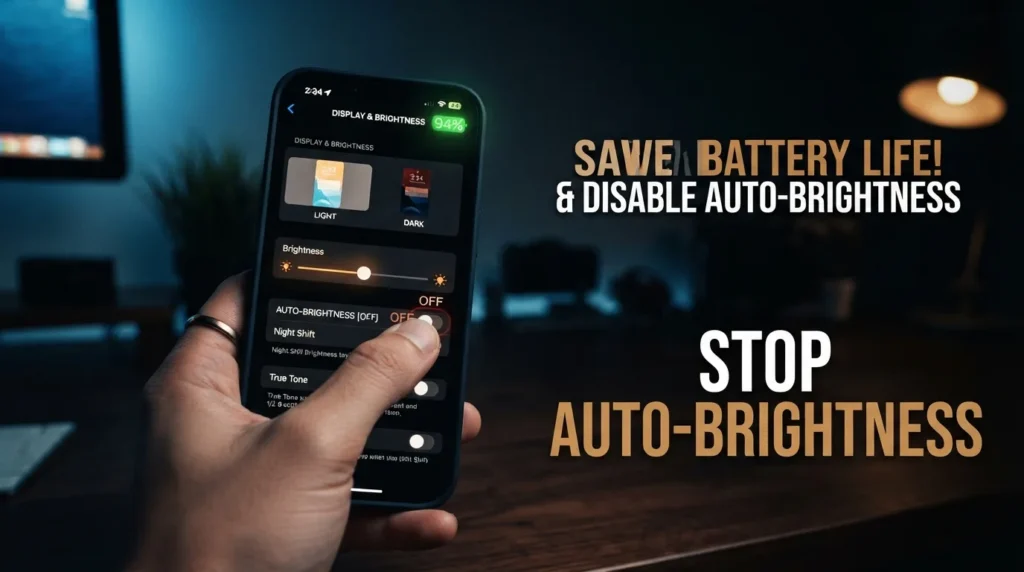
Bright sunlight makes your screen hard to read, forcing your phone auto-brightness feature to max out display output constantly. Running your screen at maximum brightness for extended periods acts as the single biggest battery drainer on mobile devices today.
Manually drag your screen brightness slider down to the lowest comfortable viewing level instead of relying on automatic adjustments. Turning off automatic screen brightness prevents your phone display from consuming unnecessary power whenever ambient light shifts slightly outdoors.
4. Turn Off Background App Refresh for Social Apps
Social media and messaging apps continuously check for fresh updates, photos, and messages in the background, even when your phone stays locked inside your pocket. This background syncing activity consumes valuable processing cycles and drains battery capacity rapidly throughout your day.
Toggle off background refresh permissions for non-essential platforms like Instagram, TikTok, and news feeds inside your phone settings. Applying these simple phone battery saving tips for one day trips ensures background processes do not steal your power supply while you explore.
5. Enable Low Power Mode Right at Sunrise
Most people wait until their battery drops to twenty percent before turning on built-in battery saver modes. Turning on low power mode the moment you leave your front door preserves your battery charge far more effectively across a full day of travel.
Enabling battery saving modes restricts background activity, lowers screen refresh rates, and reduces processor performance before heavy battery drain occurs. Turning on low power mode early ensures you retain plenty of battery life for late afternoon photos and dinner reservations.
6. Disable 5G Cellular Data Search
Searching for high-speed 5G signals in areas with spotty tower coverage forces your mobile modem to use high power levels to maintain a stable data connection. Switching your cellular settings to restrict data connections to standard LTE or 4G networks saves massive amounts of battery power.
Navigate to your cellular data options menu and select LTE as your primary data connection standard during travel. Locking your device to LTE network data stops your hardware from draining battery life by hunting for weak 5G signals.
7. Simple Phone Battery Saving Tips for One Day Trips: Lock Camera App
Leaving your camera app running open in the background prevents your phone processor from entering low-power sleep states between taking photos. Camera sensors, image processing chips, and location tagging demand high energy levels while active.
Swipe your camera application completely closed immediately after taking photos or shooting quick vacation video clips. Practicing camera app closure stops your camera hardware from heating up your device and consuming battery reserves while stored in your pocket.
8. Turn Off Wi-Fi and Bluetooth Scanning
Your phone continuously broadcasts wireless signals to search for nearby Wi-Fi routers and Bluetooth accessories, even when you are walking outdoors far from home. This continuous signal scanning puts extra strain on your battery while traveling between sights.
Swipe open your control center and toggle off Wi-Fi and Bluetooth connections completely while moving between locations. Stopping wireless signal scanning prevents your device from wasting power attempting to pair with public hotspots and nearby devices.
9. Reduce Lock Screen Auto-Lock Timeout
Leaving your screen auto-lock setting set to three or five minutes leaves your display glowing unnecessarily whenever you glance at a notification. Every extra minute your screen stays lit steals small percentages of your overall battery capacity throughout the afternoon.
Adjust your screen lock settings so your display turns off automatically after thirty seconds of inactivity. Setting a short auto lock duration prevents accidental battery drain if your screen turns on unexpectedly inside your bag or pocket.
10. Disable Haptic Keyboard Feedback and Sound FX

Small vibration motors and speaker sound effects trigger every single time you tap out a text message or search query during your trip. Haptic feedback motors require physical energy to vibrate your phone casing, adding subtle strain to your battery over hundreds of taps.
Navigate to your sound and haptics settings menu to disable keyboard vibration feedback and key tap sounds entirely. Turning off haptic feedback vibrations stretches your battery life further, keeping your device silent and efficient during sight-seeing outings.
11. Limit Animated Wallpapers and Widgets
Dynamic animated wallpapers and active lock screen widgets require continuous processing power to update live weather, stock, and news information. Having multiple widgets on your home screen forces your device hardware to stay active even during short lock screen checks.
Switch your home and lock screen backgrounds to a simple, dark static image before heading out for your day trip. Removing live lock widgets reduces visual processor load, ensuring your screen draw takes absolute minimum energy when you check the time.
12. Turn Off Push Email Syncing Automatically
Email clients set to push data fetch new messages from servers every few minutes, waking up your mobile processor constantly throughout the day. Fetching work or personal email updates while visiting parks or museums drains battery reserves without offering any real travel benefit.
Adjust your mail settings to fetch updates manually or hourly instead of receiving instant push notifications continuously. Switching to manual email fetch gives your phone hardware long stretches of undisturbed rest, preserving vital battery reserves for essential travel apps.
13. Airplane Mode in Zero Signal Zones
When hiking or traveling through remote canyons and rural areas, your phone boosts its transmitter power to maximum limits trying to locate cell towers. Searching endlessly for non-existent mobile coverage can completely drain a full battery charge in less than two hours.
Toggle your phone into airplane mode whenever you enter deep wilderness trails or remote historical sites with zero network coverage. Enabling airplane mode travel stops battery drain entirely while keeping your offline camera and downloaded maps fully accessible for use.
Frequently Asked Questions
Do these simple phone battery saving tips for one day trips work for both Android and iPhone?
Yes, these core power management strategies apply to both iOS and Android platforms. Settings like dark mode, offline mapping, disabling background refresh, lowering screen brightness, and restricting 5G work similarly across Samsung, Apple, Pixel, and Motorola devices to preserve charge.
Is it safe to leave Low Power Mode on all day long during trips?
Yes, leaving Low Power Mode active all day is completely safe for your device hardware. It simply scales down background app updates, lowers screen refresh rates slightly, and reduces background fetching to preserve energy. You can turn it off once you reach home and connect to your charger.
Will turning off location services completely break my travel apps?
Turning off main location services will stop navigation apps like Google Maps and Apple Maps from tracking your location accurately. Instead of disabling location completely, set app permissions to only while using app. This setting lets maps work when opened while stopping background tracking when locked.
Why does my phone battery drain faster when taking photos on day trips?
Taking photos demands heavy processing power for real-time sensor processing, screen preview rendering, and GPS geo-tagging. The camera sensor also prevents your phone processor from entering sleep mode. Closing your camera app completely between shots saves significant battery capacity over a long day.
Should I close all background apps manually to save battery?
Swiping away apps you use frequently can actually use more battery because your phone must reload them from scratch into memory. However, closing heavy apps like live camera feeds, turn-by-turn navigation, and mobile games when done using them stops them from draining power in the background.
Conclusion
Preparing your mobile device with a few smart setting tweaks keeps your camera and navigation tools active without carrying bulky accessories. You can capture memories and find great food spots without stressing over a dying battery. Which battery tip are you going to enable before your next day trip outing?