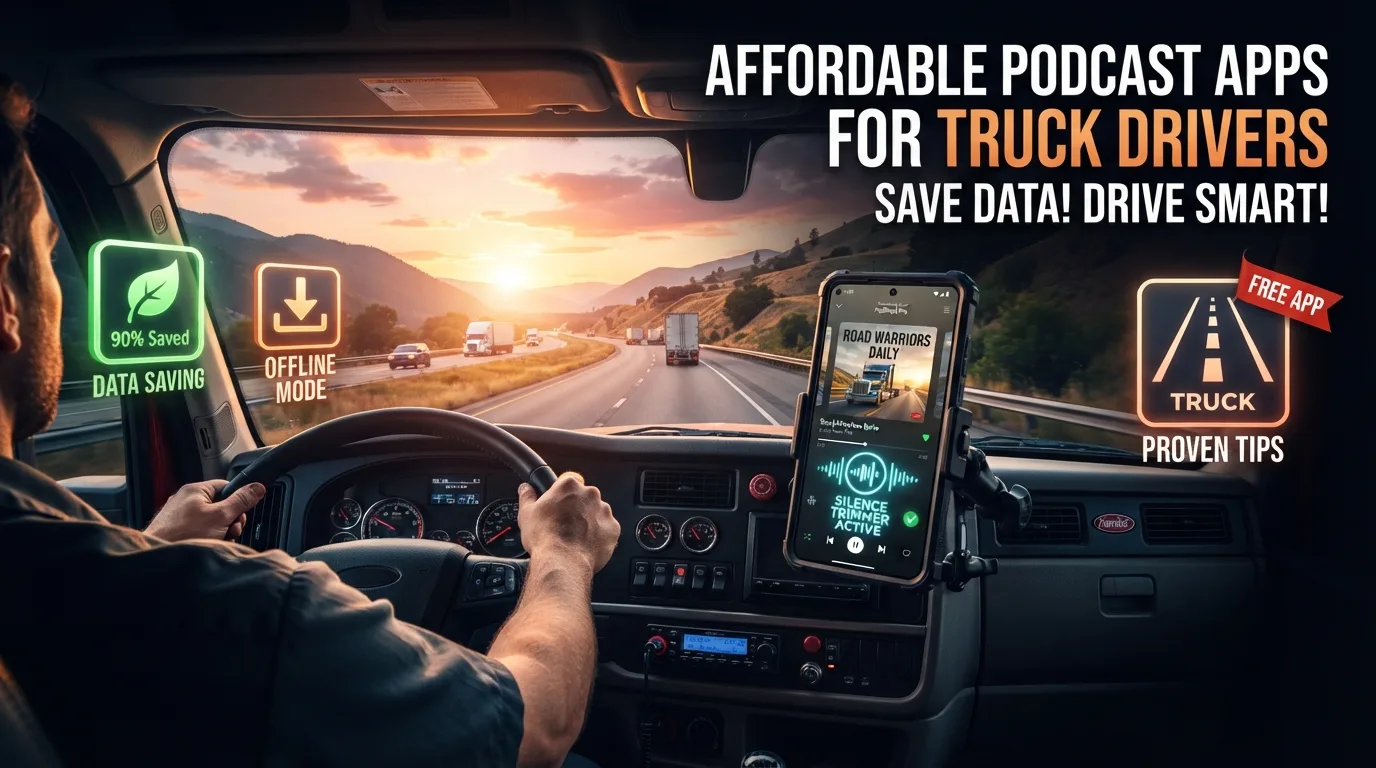
Finding affordable podcast app setup tips for truck drivers saved my sanity while driving twelve-hour shifts across endless stretches of empty highway. Spending long hours behind the wheel gets boring fast, and streaming high-definition audio constantly drains your mobile data plan before the month even finishes. You do not need expensive satellite radio subscriptions to stay entertained. Setting up your mobile apps properly gives you infinite hours of podcasts completely free.
1. Set Downloads to Wi-Fi Only at Fuel Stops
Streaming podcasts live over cellular towers consumes massive amounts of data, especially when driving through low-service rural zones. Setting your player software to download episodes strictly over Wi-Fi prevents your app from eating your mobile data budget while on the road.
Enable the Wi-Fi only download setting inside Pocket Casts or Spotify before pulling out of your home terminal. Use free truck stop Wi-Fi networks during your mandatory break periods to queue up your audio shows for your next long drive segment.
2. Automate Episode Up-Next Queues
Fumbling with your phone screen to select new episodes while driving long-haul rigs is dangerous and illegal in most states. Setting up an auto-queue feature fills your playlist automatically so continuous playback runs smoothly without touching your screen.
Configure your app to automatically push new unlistened episodes straight into your up-next audio playlist. This keeps your focus locked on traffic while your show queue transitions smoothly from news updates to long-form storytelling shows.
3. Enable Silence Trimming to Save Drive Time
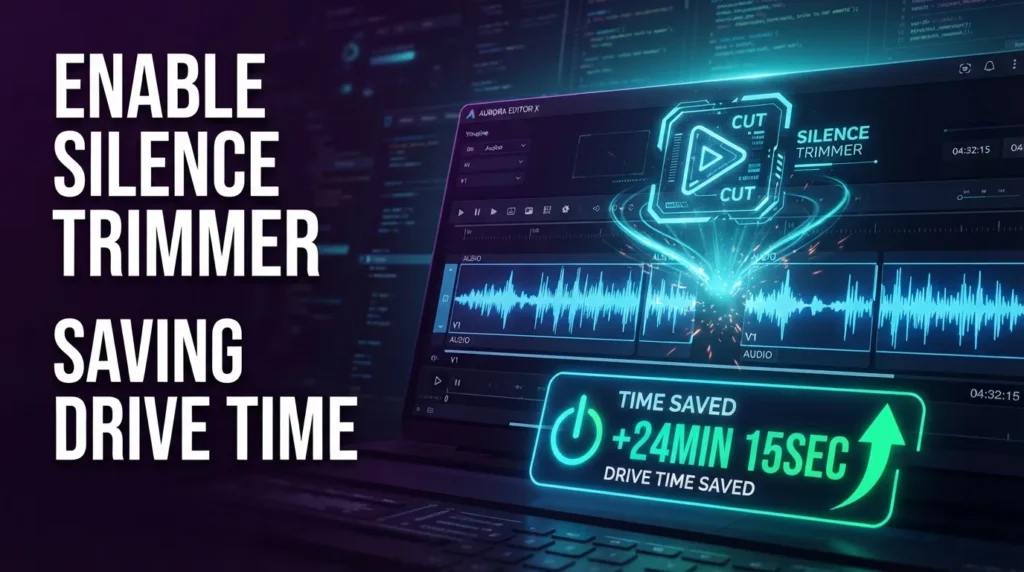
Long pauses and dead silence during interview shows add up to hours of wasted listening time over a long week on the road. Player features like Smart Speed on Overcast or Trim Silence on Pocket Casts trim out silent gaps without distorting voices.
Turning on smart silence removal shortens long episodes without speeding up speech pitch unnaturally. Cutting dead air lets you finish a three-hour interview show twenty minutes faster, letting you get through more shows per shift.
4. Affordable Podcast App Setup Tips for Truck Drivers: Adjust Auto-Delete Settings
Downloading dozens of long-form shows can fill up your phone storage space, causing performance lags and app crashes midway through your route. Setting up automatic deletion rules removes downloaded audio files instantly after listening is finished.
Applying affordable podcast app setup tips for truck drivers prevents storage issues while managing audio feeds effortlessly on long runs. Toggle on automatic post-listen deletion inside your episode management menu to keep your storage clear for tomorrow downloads.
5. Utilize Free Open-Source Players Like AntennaPod
Paying monthly app subscription fees to remove banner ads or access basic offline download queues adds unnecessary costs to your budget. AntennaPod is a completely free, open-source Android app that provides premium features without charging subscription fees or displaying annoying ads.
It offers advanced playback controls, RSS feed customization, and automated download scheduling without hidden paywalls. Switching to a free open-source player gives you professional audio management tools while keeping your hard-earned money in your pocket.
6. Boost Vocal Clarity with Built-In Equalizer Presets
Engine noise, road rumble, and cab vibrations make hearing quiet podcast voices difficult over factory truck speakers. Turning up your main volume distorts audio, while turning on voice boost features enhances vocal frequencies above heavy highway noise.
Select the vocal booster EQ preset inside your app settings to make quiet talk show hosts sound crisp over loud diesel engines. Elevating speech frequencies lets you listen at lower master volume levels, protecting your hearing over long driving careers.
7. Schedule Automated Downloads During Early Hours
Setting your phone to fetch fresh show episodes while sleeping at truck stops ensures your queue stays updated before hitting morning traffic. Most podcast clients allow you to schedule automated refresh tasks at specific times when connected to truck stop Wi-Fi.
Program your application to refresh your feed and download new episodes at four in the morning every day. Using an automated night download schedule guarantees your morning shift begins with fresh news and comedy shows ready to play.
8. Boost Playback Speed to 1.2x
Listening to conversations at normal speeds can feel slow during monotonous long-distance drives across flat plains. Increasing playback speed slightly to 1.2x speeds up slow speakers without making voices sound like chipmunks.
Setting your default speed to 1.2x audio playback allows you to finish five shows in the time it usually takes to finish four. It keeps your brain engaged during long night runs, keeping fatigue away without sacrificing comprehension.
9. Create Show Playlists by Subject Matter
Jumping from serious true-crime documentaries to loud comedy shows can disrupt your focus while handling heavy city traffic. Organizing your subscription feeds into categorized custom playlists keeps your audio mood consistent across long shifts.
Build separate audio folders for driving scenarios, like lightweight sports talk for heavy traffic and long storytelling for open interstates. Using custom topic playlists lets you pick the right audio vibe for your driving conditions with one quick tap before rolling.
10. Enable Large Button Driving Modes
Trying to hit small pause or skip buttons on standard phone screens causes dangerous visual distractions while driving big rigs. Switching your app settings to car mode displays giant control buttons that are easy to press at a glance.
Enable car mode control layouts in apps like Spotify or Apple Podcasts to transform your interface into massive tap targets. Large skip buttons allow you to jump past commercial breaks without taking your eyes off the highway.
11. Limit Storage Limits to Prevent Phone Crashes

Allowing podcast players to download unlimited episodes will freeze your device memory, causing map navigation apps to crash during route changes. Setting maximum storage limits caps how many gigabytes your podcast app can consume on your device.
Set your application storage cap to ten gigabytes inside your primary settings menu. Applying a hard storage limit setting keeps your smartphone running smoothly, ensuring your GPS mapping tools run without crashing mid-route.
12. Use Battery Saver Audio Settings
Running screen visualizations, album art downloads, and dynamic background updates drains your phone battery quickly when running without a heavy-duty cab charger. Toggling off high-resolution artwork downloads preserves your battery charge over long shifts.
Turn off automatic image fetching inside your application options to keep resource usage to a minimum. Disabling album artwork downloads extends your phone battery life, ensuring your device stays cool during long summer drives.
Frequently Asked Questions
Which podcast app works best for truck drivers on tight budgets?
AntennaPod is ideal for Android users because it is completely free, ad-free, and open-source with advanced offline download settings. Apple users can rely on the native Apple Podcasts app, which offers robust queue management and offline downloads without requiring paid subscriptions or premium fees.
How much phone data do downloaded podcasts use on long trips?
A typical one-hour podcast episode uses roughly forty to sixty megabytes of storage space or cellular data. Downloading ten hours of shows over cellular data can burn through half a gigabyte daily. Downloading shows over free truck stop Wi-Fi prevents high cellular bill overages completely.
Can I listen to podcasts offline in weak cell service zones?
Yes, setting your podcast player to auto-download queued episodes while connected to Wi-Fi allows playback anywhere without cellular service. Offline audio files play directly from your device storage, ensuring continuous entertainment through mountain passes, desert stretches, and remote dead zones.
How do I stop road noise from drowning out quiet podcast voices?
Turn on your app’s voice boost or volume normalization settings, which amplify quiet speech while capping loud sounds. Combining voice boosting with a vocal equalizer preset makes talk shows crisp over diesel engine rumble without raising master volume to unsafe levels.
Conclusion
Setting up your mobile podcast player properly keeps your eyes on the road while saving your data budget on long hauls. A few quick tweaks to your download preferences and audio settings turn long highway hours into engaging listening sessions. Which show are you going to queue up for your next long shift?