Finding beginner friendly video call setup tips for anxious users changed my daily routine after months of sweating through every single Zoom meeting. My heart used to race whenever the webcam light turned green, making me dread simple work check-ins. You do not need expensive studio lighting or technical skill to feel in control on camera. A few simple environment tweaks completely eliminate that overwhelming virtual performance pressure.
1. Hide Your Own Video Self-View
Staring at your own face during an hour-long meeting creates constant self-consciousness that drains your mental energy. Learning simple beginner friendly video call setup tips for anxious users can turn video meetings into stress-free routine events. Most video software allows you to right-click your display box and select hide self-view.
The software still sends your video stream to everyone else, but removing your face from your screen lets you focus on conversation partners. Disabling self-view settings in Zoom or Microsoft Teams instantly stops you from checking your hair or micro-expressions every five seconds.
2. Position the Camera at Eye Level
Looking down into a laptop webcam sitting on a desk creates unflattering camera angles that heighten personal anxiety. Stacking your laptop on a few heavy hardcover books brings the lens directly in line with your eyes.
Making eye contact with the camera lens feels far more natural when you are not slumping in your chair to fit the frame. This simple camera elevation trick establishes a relaxed posture, letting you sit back comfortably without worrying about awkward chin angles.
3. Use Soft Facing Natural Light
Harsh overhead light bulbs cast deep shadows across your face, making you feel washed out or poorly lit on screen. Placing your desk directly facing a window floods your workspace with soft, even illumination that instantly brightens your camera feed.
If you work in a room without windows, place a desk lamp slightly behind your monitor and point it against the wall behind your computer. That bounced glow creates soft indirect lighting that looks clean without blinding your eyes while you present.
4. Test Audio with a Practice Meeting
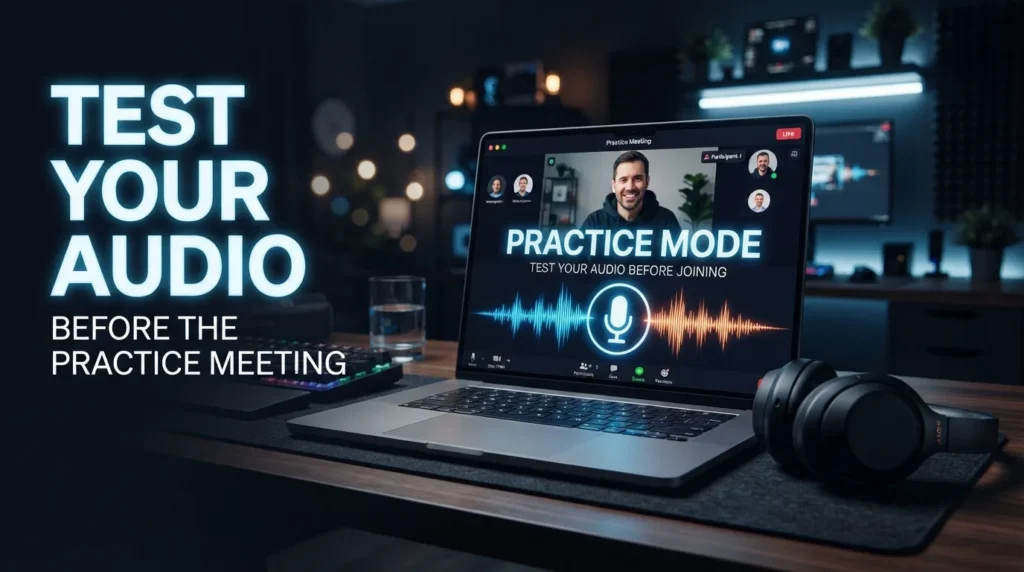
Fearing that your microphone will not work when your boss calls your name creates immense pre-meeting panic. Launching a private test call inside Zoom settings before your real appointment allows you to check speaker levels and microphone clarity privately.
Recording a short five-second test clip lets you verify exactly how your voice sounds to other participants. Completing a pre-call audio test removes technical guesswork so you enter the meeting completely sure your hardware works smoothly.
5. Position a Simple Wall Behind You
Worrying that family members or pets will wander across your camera frame causes constant background hypervigilance. Implementing these beginner friendly video call setup tips for anxious users keeps your home space feeling private during surprise calls. Moving your desk so your back faces a clean, blank wall prevents anyone from walking behind you during live calls.
Having a solid barrier at your back creates a psychological safe zone so you do not keep turning around mid-sentence. Setting up against a neutral wall backdrop gives your stream a tidy appearance without requiring artificial digital backgrounds.
6. Keep Water and Notes Nearby
Getting tongue-tied during an unexpected question can make your throat feel dry and fuel sudden social anxiety. Placing a water glass alongside sticky notes taped right beside your camera lens gives you an easy physical anchor point.
Taping key talking points around your monitor frame allows you to scan your notes while keeping your face focused near the lens. Having a physical cheat sheet ready means you never have to panic about forgetting project numbers or colleague names.
7. Beginner Friendly Video Call Setup Tips for Anxious Users: Enable Noise Suppression
Background noises like barking dogs or passing traffic can make you feel exposed and embarrassed on live calls. Modern video software features built-in noise removal tools designed to filter out background hums while keeping your vocal track crisp.
Navigating to your audio settings menu allows you to set noise cancellation from auto to high. Turning on software noise suppression silences loud laptop cooling fans and noisy kitchen appliances before that audio reaches your meeting participants.
8. Choose a Wired Headset with Mic
Relying on built-in laptop microphones often captures hollow room echoes that make you strain your voice to sound clear. Using a simple USB wired headset brings the microphone close to your mouth, ensuring consistent volume without picking up room noise.
Wired headsets eliminate the sudden battery drain and Bluetooth pairing drops common with cheap wireless earbuds. IMO, wearing a simple wired headset device gives you reliable sound quality that boosts your confidence during long group presentations.
9. Set Up Keyboard Shortcuts for Mute
Fumbling around your screen to find the tiny mute button while coughing creates an unnecessarily tense moment. Learning your software’s primary keyboard shortcut lets you toggle your microphone on and off instantly without touching your mouse.
Holding spacebar down to temporarily unmute yourself in Zoom lets you speak a quick answer and drop back to silence immediately. Memorizing keyboard mute shortcuts gives you quick mechanical control over your sound feed during chaotic group calls.
10. Join Meetings Two Minutes Early
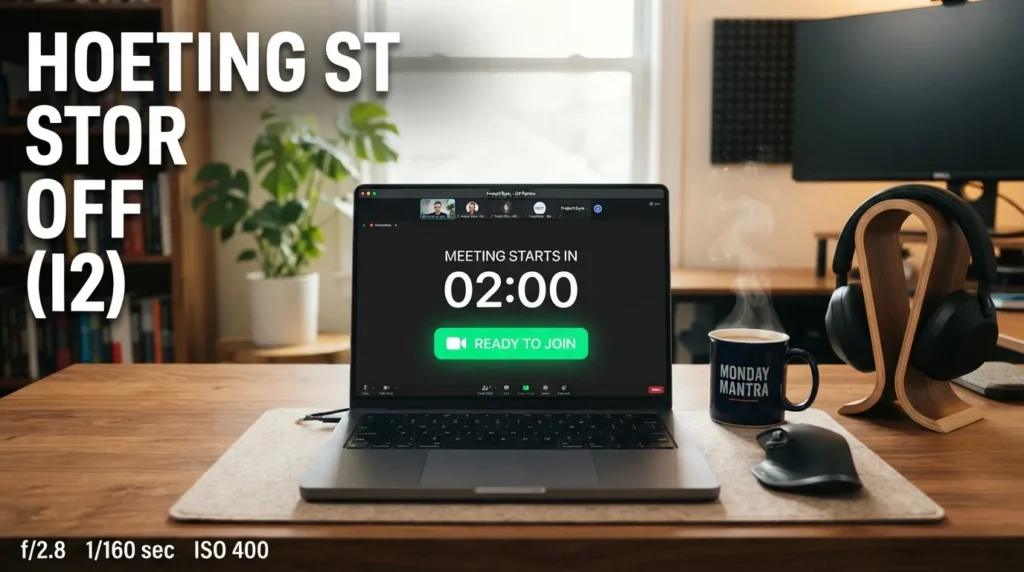
Jumping into a crowded call at the exact scheduled start time often feels like walking onto a stage unprepared. Entering the virtual waiting room two minutes early gives your system software time to load video drivers cleanly without rushing.
Taking those few calm moments to settle your breathing and adjust your chair prevents that frantic heart-racing feeling. Joining early creates a smooth meeting entry that lets you collect your thoughts before everyone starts talking at once.
11. Blur Your Background Preset
Cluttered bookshelves or unmade beds behind your desk can make you feel self-conscious about your personal living environment. Using software background blur adds a subtle soft-focus effect to your surroundings while keeping your body completely sharp.
Selecting a light blur intensity hides room mess without looking fake or cutting off your ears like fake virtual beach images do. Enabling background blur tools preserves your home privacy so you can present professionally from any room in your house.
12. Practice Control Over Screen Sharing
Selecting the specific application window option instead of full desktop sharing keeps your open browser windows completely hidden. Closing extra applications and turning on Do Not Disturb mode on your computer before joining prevents unexpected messaging alerts.
FYI, applying these beginner friendly video call setup tips for anxious users ensures private personal tabs stay hidden while sharing slides. Utilizing application window sharing protects your digital privacy during important team presentations.
13. Adjust Camera Framing to Include Upper Torso
Zooming in too tight on your face creates an uncomfortable feeling of extreme proximity that elevates heart rates during conversation. Position your camera far enough back to capture your head, shoulders, and upper torso comfortably within the frame.
Showing basic hand gestures and posture makes your virtual presence feel grounded rather than like a floating head on screen. Maintaining proper camera distance builds natural visual boundaries so you feel relaxed throughout long video conversations.
14. Lower Video Resolution to Prevent Stuttering
Dealing with frozen video frames and choppy audio stutters can cause major panic while you are trying to present ideas. Setting your video input resolution from 1080p high definition down to standard 720p reduces data load on weak home Wi-Fi networks.
Lowering your camera resolution keeps your video stream playing smoothly even during evening internet traffic spikes across your neighborhood. Relying on standard video resolution prevents embarrassing software crashes when multiple participants join the call.
Frequently Asked Questions
How can beginner friendly video call setup tips for anxious users help with public speaking fears?
Simple physical setup adjustments reduce unexpected distractions and camera pressure. Controlling your lighting, audio levels, and screen view eliminates technical surprises, allowing you to focus on your words rather than worrying about software glitches or camera angles while speaking.
What is the easiest way to hide my messy room on a video call?
Turn on your meeting app’s built-in background blur feature before joining the call. Background blur softens your surroundings instantly without cutting off your hair or using weird artificial digital images. Sitting close to a plain wall offers an even cleaner physical solution for home privacy.
Why does looking at my own face on Zoom make me anxious?
Constant self-view triggers heightened self-awareness, making your brain feel like you are standing in front of a mirror while talking. Right-clicking your video thumbnail and choosing hide self-view lets other people see you while hiding your image from your screen, instantly lowering your stress.
What should I do if my internet freezes during an important call?
Turn off your video camera immediately to save bandwidth and keep your audio stream active. Let participants know your connection is unstable, take a slow breath, and switch to phone audio if needed. Having a mobile phone hotspot ready offers reliable emergency backup power.
Conclusion
Taking a few minutes to customize your digital environment completely removes the pressure of live virtual meetings. Small adjustments to your camera height, background, and audio settings give you control over every conversation. Which setup tweak are you going to try before your next scheduled video call?