If you are tired of your baby monitor dropping connection at three in the morning, finding the best home wifi setup tutorial for new parents becomes an absolute priority. Exhausted moms and dads cannot deal with spotty coverage or compromised nursery cameras while managing a newborn. Configuring a reliable and secure wireless network takes under twenty minutes, saving your sanity during those critical late night feeds.
Choose Strategic Router Placement for Nursery Signals
Positioning your router in a dusty corner near your breaker box guarantees terrible signal strength in the baby room. Thick drywall, plaster, brick, and metal crib frames block wireless frequencies quickly, causing your video feed to lag right when your infant starts fussing.
Place your main router in a central location elevated off the floor on a shelf or wooden console table. Keeping hardware away from large metal appliances and wireless landline bases ensures central elevation delivers maximum signal coverage straight to smart devices like your Nanit or Owlet monitor.
Isolate Smart Baby Gear on a Dedicated Guest Network
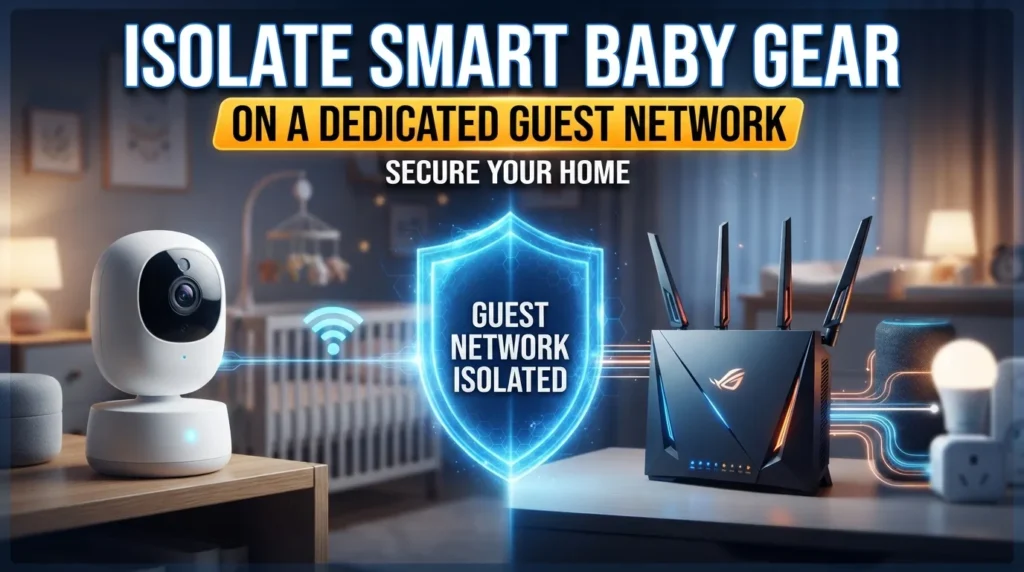
Smart cameras, automated white noise machines, and connected nightlights add incredible convenience to nursery routines. However, budget smart home accessories often ship with weak internal security controls that make them vulnerable to unauthorized network access.
Log into your router admin panel and turn on your secondary network feature for complete guest network isolation. Connecting all your baby hardware to this isolated sub-network prevents a compromised nursery camera from ever accessing your personal laptops, family photos, or online banking files.
Update Factory Passwords and Enable WPA3 Security
Leaving standard default admin credentials active on your home networking hardware gives potential intruders an open door into your household. Hackers regularly target default factory passwords like admin or password using automated scanning scripts.
Open your network management app and create a long, customized administrator password immediately. Next, update your wireless network encryption settings to the modern WPA3 encryption standard, or select WPA2-AES if you have older smart hardware that requires legacy support.
Best Home Wifi Setup Tutorial for New Parents: Split Dual-Band Frequencies
Combining your wireless bands into one single network name forces your router to decide which frequency your devices use. That dynamic switching often drops video streams on smart monitors when your phone moves between rooms.
Applying the best home wifi setup tutorial for new parents means taking control of your frequencies. Enable dual-band separation by creating distinct names for your 2.4 GHz and 5 GHz networks. Keep your smart cameras locked strictly to the 2.4 GHz network for long-range wall penetration, while reserving the faster 5 GHz band for your personal phones and televisions.
Prioritize Nursery Camera Traffic Using Quality of Service

Heavy internet usage like downloading massive game updates or streaming 4K movies can starve your nursery camera of precious upload bandwidth. That unexpected network congestion causes video lag, frame freezing, and delayed audio alerts on your phone.
Navigate to your router settings and locate the Quality of Service menu. Enabling bandwidth prioritization lets you assign highest priority status to your baby monitor MAC address, guaranteeing smooth video playback even when your partner streams high-definition content downstairs.
Consider a Mesh Network for Seamless Coverage Across Rooms
Single traditional routers often struggle to push high-speed signals through multiple floors, heavy doors, and backyards. If your nursery sits at the far end of the hallway, a standard router might leave you with frustrating dead zones.
Upgrading to a system with modular mesh nodes like Eero, Google Nest WiFi, or Netgear Orbi solves spatial dead spots entirely. Placing a satellite node just outside the nursery door creates a strong, continuous signal bridge that keeps your video monitoring system running without dropouts.
Enable Automated Firmware Updates and Periodic Reboots
Running outdated router software exposes your entire home network to unpatched security vulnerabilities discovered by researchers. Manufacturers release software updates constantly to fix performance bugs and shield against fresh security threats.
Turn on automatic firmware updates inside your router mobile application so safety patches install during early morning hours. Setting your hardware to reboot automatically once a week clears out cached network memory, keeping your connection snappy throughout demanding parenting routines.
Frequently Asked Questions
Is a dedicated home wifi setup for new parents truly necessary for video monitors?
Video baby monitors stream constant high-definition data, which can strain standard home networks and cause annoying lag. Setting up separate network bands prevents video buffering when other family members stream movies. It also isolates camera hardware from your personal financial files, providing essential privacy protection for your growing family.
Should I buy a Wi-Fi monitor or a non-Wi-Fi baby monitor?
Wi-Fi monitors let you check live video from anywhere using your smartphone, which offers huge convenience for working parents. Non-Wi-Fi monitors use local frequency signals, eliminating hacking risks entirely. If you choose Wi-Fi, securing your router with strong encryption and a guest network keeps your feed completely private.
Why does my baby monitor keep losing Wi-Fi connection in the nursery?
Thick walls, metal crib frames, white noise machines, and microwave ovens frequently cause signal interference. Moving your router higher, switching the monitor to a dedicated 2.4 GHz frequency channel, or adding a mesh node closer to the nursery usually solves connection dropping without needing expensive equipment upgrades.
How can I stop strangers from hacking our smart nursery camera?
Change default admin passwords on both your router and camera app immediately after unboxing. Enable two-factor authentication on your camera user account, turn off remote web management settings, and keep camera software updated. Putting nursery gear on an isolated guest network adds another powerful layer of safety.
Conclusion
Taking twenty minutes to optimize your router settings provides reliable video feeds and robust network security for your growing family. Once your monitor signal stays rock solid through the night, you can rest easy knowing your baby is safe. Have you updated your router credentials for the nursery yet?