
Using this foolproof laptop maintenance checklist for first time owners will save you from an expensive trip to the repair shop. I fried my very first laptop back in college simply because I kept using it on a plush blanket while bingeing shows. A few simple care habits prevent heat damage, slow performance, and battery drain. Protecting your investment takes minimal effort every week.
1. Keep Vents Clear of Soft Bedding
Resting your machine on blankets, pillows, or carpet blocks the intake fans underneath the chassis. Excessive heat builds up quickly inside the casing, degrading internal components and causing CPU throttling.
I ruined my old Dell motherboard by working in bed without a solid lap desk. Always place your computer on a flat wooden desk or a hard tray to maintain proper airflow clearance under the frame.
2. Clean the Screen With Microfiber Only
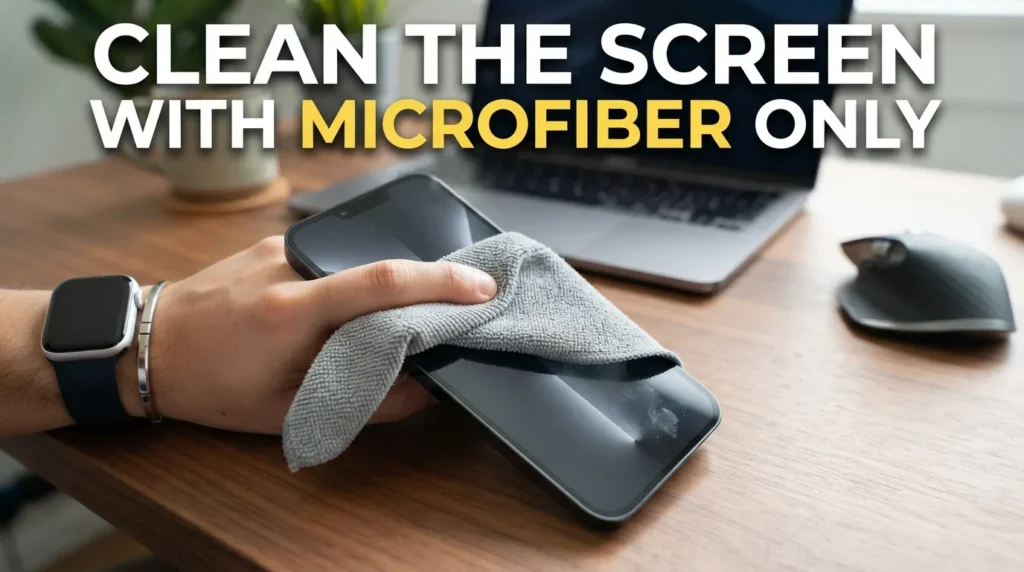
Spraying household glass cleaner directly onto modern laptop displays strips delicate anti-reflective coatings instantly. Paper towels leave fine scratches across glossy screens that look terrible over time.
Shut down your display completely and use a dry microfiber cloth to buff away fingerprints and oily smudges. For stubborn grime, dampen the cloth lightly with distilled water instead of using harsh chemicals.
3. A Foolproof Laptop Maintenance Checklist for First Time Owners Needs Battery Care
Leaving your charger plugged into the wall 24/7 degrades lithium-ion battery capacity over several months. Modern laptops perform best when kept between twenty and eighty percent charge during daily desktop use.
Enable built-in charge threshold limits inside software utilities like Lenovo Vantage or ASUS Armoury Crate. Limiting daily maximum charges to eighty percent prevents battery capacity loss while keeping your power pack healthy for years.
4. Clear Out Desktop Clutter and Downloads
Keeping a foolproof laptop maintenance checklist for first time owners helps prevent disk clutter from dragging down performance. Storing hundreds of loose files on your desktop forces your operating system to generate continuous icon previews in system memory.
Create dedicated subfolders inside your main Documents and Pictures directories to store long-term projects systematically. Empty your computer recycle bin every Friday to permanently remove unused installer files hogging precious storage space.
5. Wipe Down Keyboards With Isopropyl Alcohol
Oil from your fingers combines with dust to create a sticky layer of grime on keycaps. Crumbs fallen between switch mechanisms can prevent keys from registering keystrokes properly during typing sessions.
Dip a lint-free swab lightly in seventy percent isopropyl alcohol and gently clean around individual key caps. This quick keyboard sanitation process removes sticky oil buildup without dripping liquid down into sensitive circuit boards beneath.
6. Run System Updates Every Single Week
Ignoring operating system reboot notifications leaves your device wide open to zero-day security vulnerabilities. Hardware manufacturers also release graphics and system firmware updates that resolve mysterious freeze bugs and performance drops.
Set up automatic download schedules so system patches download quietly in the background without interrupting work. Taking time for a quick system software reboot once a week keeps background processes running smoothly and prevents sudden crashes.
7. Uninstall Unused Bloatware Programs

New laptops often arrive pre-loaded with annoying trial software, duplicate media players, and unwanted utility bars. These bloatware programs launch automatically at startup, hogging system RAM and background processor cycles needlessly.
Open your system settings menu and review the full installed apps list to purge unnecessary third-party trial software. Removing unneeded programs frees up system memory resources so your favorite applications load significantly faster.
8. Blow Out Internal Dust With Compressed Air
Using a foolproof laptop maintenance checklist for first time owners keeps your internal cooling system working without issues. Dust bunnies naturally accumulate inside fan intake grates over six to twelve months of daily desktop operation.
Using a canned air duster allows you to clear out trapped fluff without opening up delicate internal hardware covers. Hold fan blades gently in place with a toothpick so rapid spinning does not damage internal fan bearings.
9. Back Up Important Data to the Cloud
Solid-state drives can fail suddenly without giving advance warning signs like old mechanical hard drives used to do. Losing your personal photos, tax records, or school assignments because of hardware failure is completely preventable.
Set up automated cloud syncing using services like OneDrive, Google Drive, or Backblaze for complete peace of mind. Keeping a cloud storage backup protects your essential personal files even if your hardware gets lost, stolen, or spilled on.
10. Invest in a Quality Padded Laptop Sleeve
Tossing a bare computer directly into a crowded backpack exposes plastic corners to cracked cases and bent display hinges. Small pressure points against outer lids can even break delicate internal liquid crystal display panels during travel.
Slide your machine inside a dedicated neoprene sleeve before packing it alongside books and heavy water bottles. A protective padded sleeve case absorbs unexpected drops and stops keys from scratching screens during long daily commutes.
11. Manage Startup Applications in Task Manager
Dozens of installed programs silently configure themselves to launch the moment you turn on your power button. This background activity drags down startup speed, forcing you to wait minutes before your desktop becomes responsive.
Open your system Task Manager or System Preferences to view active startup items and toggle off non-essential programs. Disabling instant launches for heavy applications improves your computer boot time instantly without affecting app performance later.
12. Handle Power Cords and Ports With Care
Yanking power cables out at sharp angles puts immense mechanical strain on delicate internal charging ports over time. Loose power jacks are expensive to repair because technicians often have to resolder components directly to motherboards.
Grasp plastic connector heads firmly when disconnecting power cables and USB accessories from your machine ports. Keeping your charging cable straight prevents broken pins, loose connections, and costly internal hardware repair bills down the road.
Frequently Asked Questions
How often should I perform routine laptop maintenance?
Perform quick tasks like screen wiping, clearing your download folder, and running software updates every week. Deeper maintenance, such as blowing dust out of intake vents and auditing installed applications, only needs to happen once every three to six months to keep hardware running fast.
Is a foolproof laptop maintenance checklist for first time owners necessary for MacBooks?
Yes, MacBooks require regular care just like Windows laptops do. While macOS handles system memory differently, physical care like vent dust removal, screen cleaning, cable management, and battery charge threshold management remain essential for preserving Apple hardware longevity and resale value over time.
Can I use rubbing alcohol to clean my laptop screen?
Never spray pure rubbing alcohol directly onto laptop screens. High concentrations of alcohol break down anti-glare coatings on modern displays. Use a dry microfiber cloth, or lightly dampen it with distilled water or specialized display cleaners formulated specifically for electronic screens.
Is it safe to leave my laptop plugged in overnight?
Leaving modern laptops plugged in overnight occasionally will not ruin your battery immediately because modern charge controllers cut power automatically. However, keeping your computer connected to wall power constantly degrades battery health over long periods. Enabling battery protection software helps maintain overall battery life.
Conclusion
Taking care of your new computer does not require hours of technical troubleshooting or expensive tools. Building these quick maintenance habits into your weekly routine protects your hardware investment and keeps your system running at peak speed. Which of these simple maintenance tips are you going to try first on your setup?